
Observability for CrewAI with Opik
CrewAI is a cutting-edge framework for orchestrating autonomous AI agents.
CrewAI enables you to create AI teams where each agent has specific roles, tools, and goals, working together to accomplish complex tasks.
Think of it as assembling your dream team - each member (agent) brings unique skills and expertise, collaborating seamlessly to achieve your objectives.
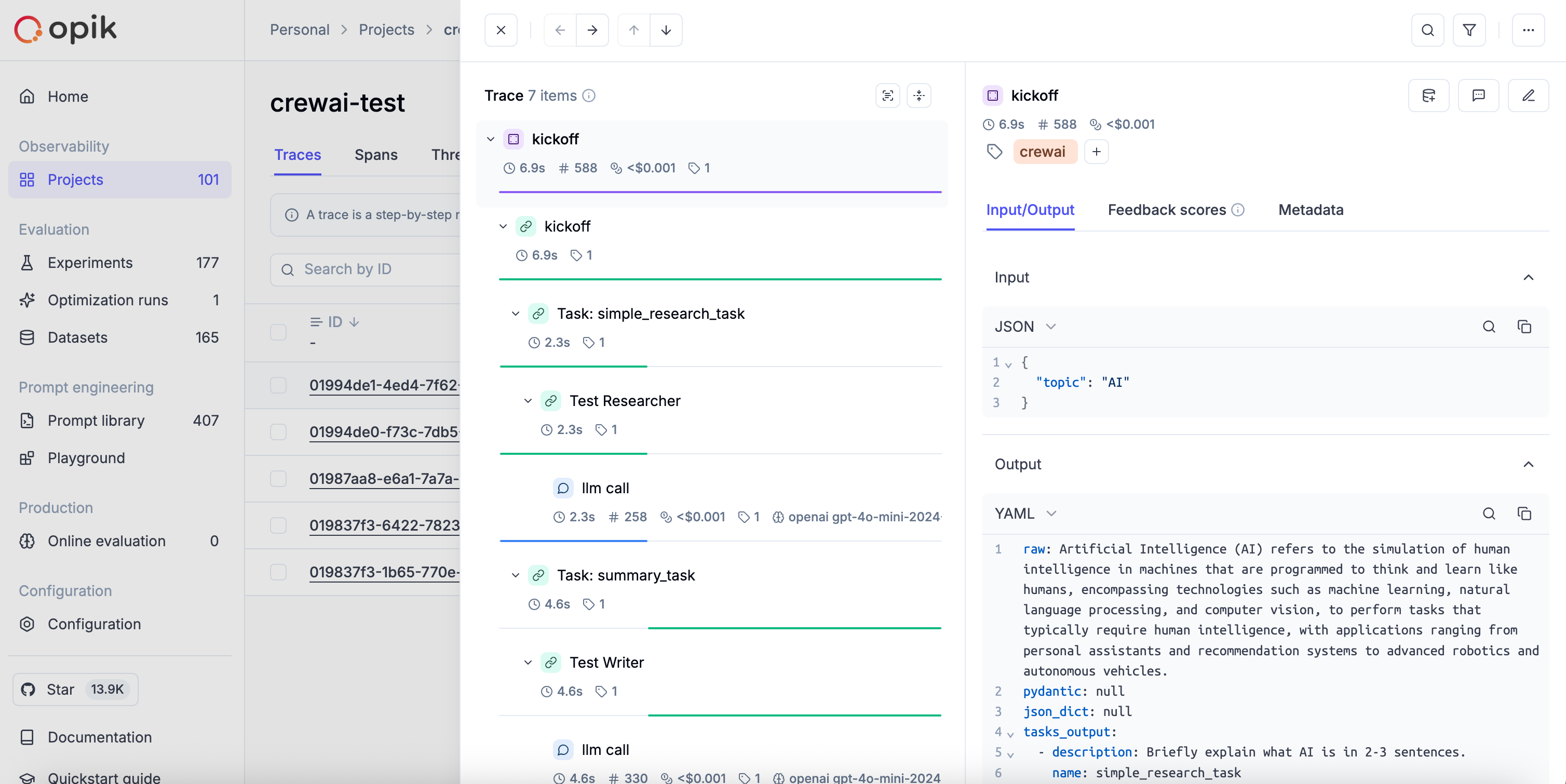
Opik integrates with CrewAI to log traces for all CrewAI activity, including both classic Crew/Agent/Task pipelines and the new CrewAI Flows API.
Account Setup
Section titled “Account Setup”Comet provides a hosted version of the Opik platform, simply create an account and grab your API Key.
You can also run the Opik platform locally, see the installation guide for more information.
Getting Started
Section titled “Getting Started”Installation
Section titled “Installation”First, ensure you have both opik and crewai installed:
pip install opik crewai crewai-toolsConfiguring Opik
Section titled “Configuring Opik”Configure the Opik Python SDK for your deployment type. See the Python SDK Configuration guide for detailed instructions on:
- CLI configuration:
opik configure - Code configuration:
opik.configure() - Self-hosted vs Cloud vs Enterprise setup
- Configuration files and environment variables
Configuring CrewAI
Section titled “Configuring CrewAI”In order to configure CrewAI, you will need to have your LLM provider API key. For this example, we'll use OpenAI. You can find or create your OpenAI API Key in this page.
You can set it as an environment variable:
export OPENAI_API_KEY="YOUR_API_KEY"Or set it programmatically:
import os
import getpass

if "OPENAI_API_KEY" not in os.environ:
    os.environ["OPENAI_API_KEY"] = getpass.getpass("Enter your OpenAI API key: ")
Logging CrewAI calls
Section titled “Logging CrewAI calls”To log a CrewAI pipeline run, you can use the track_crewai function. This will log each CrewAI call to Opik, including LLM calls made by your agents.
Creating a CrewAI Project
Section titled “Creating a CrewAI Project”The first step is to create our project. We will use an example from CrewAI's documentation:
from crewai import Agent, Crew, Task, Process

class YourCrewName:
    def agent_one(self) -> Agent:
        return Agent(
            role="Data Analyst",
            goal="Analyze data trends in the market",
            backstory="An experienced data analyst with a background in economics",
            verbose=True,
        )

    def agent_two(self) -> Agent:
        return Agent(
            role="Market Researcher",
            goal="Gather information on market dynamics",
            backstory="A diligent researcher with a keen eye for detail",
            verbose=True,
        )

    def task_one(self) -> Task:
        return Task(
            name="Collect Data Task",
            description="Collect recent market data and identify trends.",
            expected_output="A report summarizing key trends in the market.",
            agent=self.agent_one(),
        )

    def task_two(self) -> Task:
        return Task(
            name="Market Research Task",
            description="Research factors affecting market dynamics.",
            expected_output="An analysis of factors influencing the market.",
            agent=self.agent_two(),
        )

    def crew(self) -> Crew:
        return Crew(
            agents=[self.agent_one(), self.agent_two()],
            tasks=[self.task_one(), self.task_two()],
            process=Process.sequential,
            verbose=True,
        )
Running with Opik Tracking
Section titled “Running with Opik Tracking”Now we can import Opik's tracker and run our crew. For CrewAI v1.0.0+, pass the crew instance to track_crewai to ensure LLM calls are logged:
from opik.integrations.crewai import track_crewai

# Create the crew
my_crew = YourCrewName().crew()

track_crewai(project_name="crewai-integration-demo", crew=my_crew)

# Run the crew
result = my_crew.kickoff()

print(result)
Each run will now be logged to the Opik platform, including all agent activities and LLM calls.
Logging CrewAI Flows
Section titled “Logging CrewAI Flows”Opik also supports the CrewAI Flows API. When you enable tracking with track_crewai, Opik automatically:
- Tracks
Flow.kickoff()andFlow.kickoff_async()as the root span/trace with inputs and outputs - Tracks flow step methods decorated with
@startand@listenas nested spans - Captures any LLM calls (via LiteLLM) within those steps with token usage
- Flow methods are compatible with other Opik integrations (e.g., OpenAI, Anthropic, LangChain) and the
@opik.trackdecorator. Any spans created inside flow steps are correctly attached to the flow's span tree.
Example:
import litellm
from crewai.flow.flow import Flow, start, listen
from opik.integrations.crewai import track_crewai

track_crewai(project_name="crewai-integration-demo")

class ExampleFlow(Flow):
    model = "gpt-4o-mini"

    @start()
    def generate_city(self):
        response = litellm.completion(
            model=self.model,
            messages=[{"role": "user", "content": "Return the name of a random city."}],
        )
        return response["choices"][0]["message"]["content"]

    @listen(generate_city)
    def generate_fun_fact(self, random_city):
        response = litellm.completion(
            model=self.model,
            messages=[{"role": "user", "content": f"Tell me a fun fact about {random_city}"}],
        )
        return response["choices"][0]["message"]["content"]

flow = ExampleFlow()
result = flow.kickoff()
Cost Tracking
Section titled “Cost Tracking”The track_crewai integration automatically tracks token usage and cost for all supported LLM models used during CrewAI agent execution.
Cost information is automatically captured and displayed in the Opik UI, including:
- Token usage details
- Cost per request based on model pricing
- Total trace cost
Grouping traces into conversational threads using thread_id
Section titled “Grouping traces into conversational threads using thread_id”Threads in Opik are collections of traces that are grouped together using a unique thread_id.
The thread_id can be passed to the CrewAI crew as a parameter, which will be used to group all traces into a single thread.
from crewai import Agent, Crew, Task, Process
from opik.integrations.crewai import track_crewai

# Define your crew (using the example from above)
my_crew = YourCrewName().crew()

# Enable tracking with the crew instance (required for v1.0.0+)
track_crewai(project_name="crewai-integration-demo", crew=my_crew)

# Pass thread_id via opik_args
args_dict = {
    "trace": {
        "thread_id": "conversation-2",
    },
}

result = my_crew.kickoff(opik_args=args_dict)
More information on logging chat conversations can be found in the Log conversations section.