Observability for Dify with Opik
Learn how to connect Opik with Dify to monitor your applications' performance.
Setup Instructions
Section titled “Setup Instructions”Follow these simple steps to connect Dify with Opik:
- Select the Dify app you want to monitor
- Select Monitoring from the side menu
- Click on Tracing app performance
- Click on Configure for Opik
- Enter your connection details based on your Opik version:
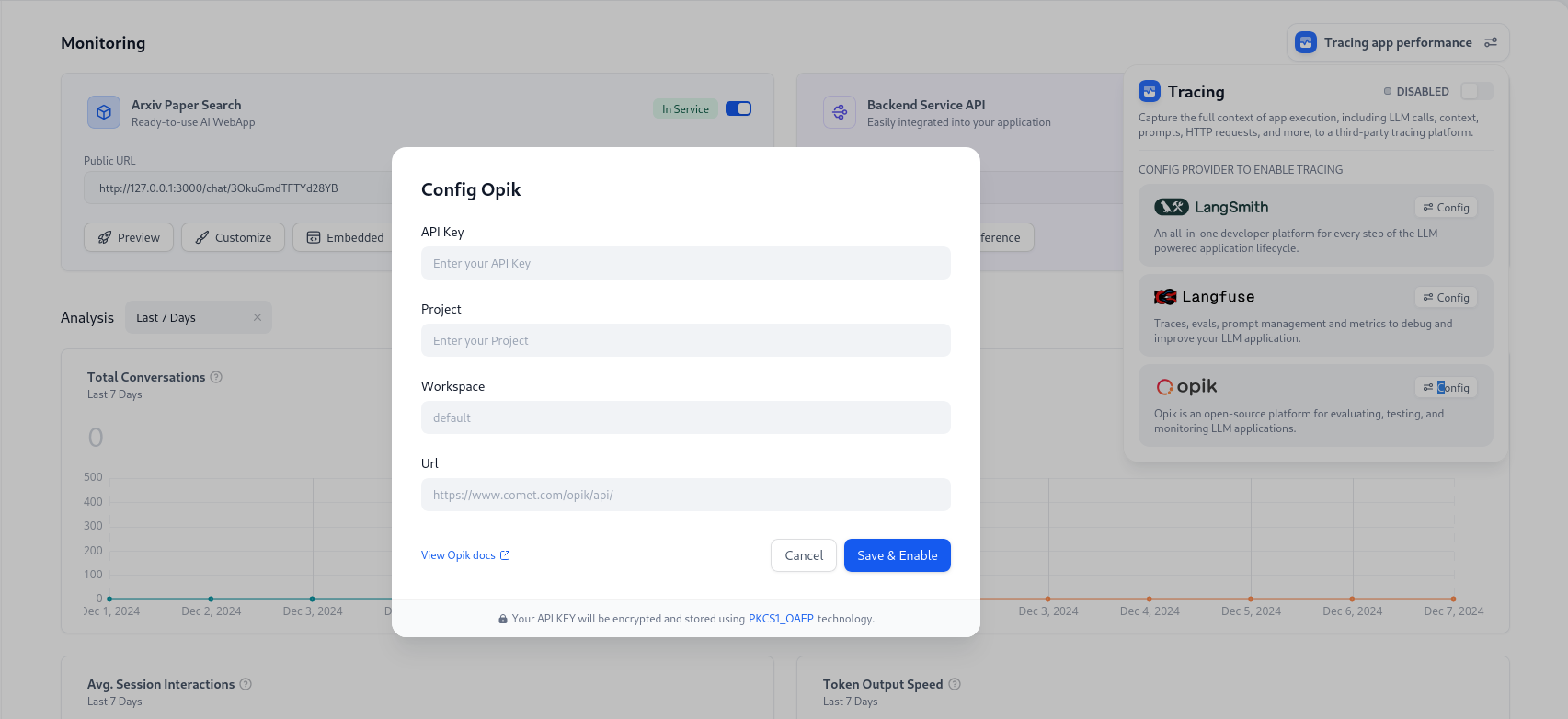
Fill in these fields:
- API Key: Your Comet API Key
- Project: Your preferred project name (if left empty, it will be created automatically)
- Workspace: Your Comet Workspace name (must already exist)
- URL: Your Opik installation URL (make sure it ends with
/api/)
Fill in these fields:
- API Key: Leave this empty
- Project: Your preferred project name (if left empty, it will be created automatically)
- Workspace: Type
default - URL: Your Opik installation URL (make sure it ends with
/api/)
How to View Your Traces
Section titled “How to View Your Traces”After setup, you can view your application traces by:
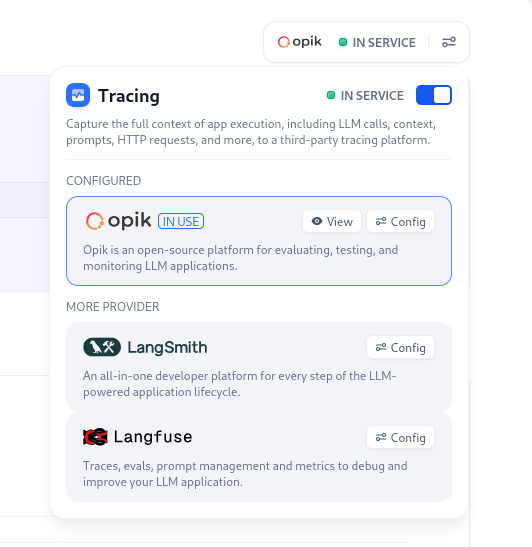
- Opening the Monitoring section from the side menu
- Finding and clicking the OPIK button in the top-right corner
- Selecting View to open your Opik project dashboard