
Observability for Cohere with Opik
Cohere provides state-of-the-art large language models that excel at text generation, summarization, classification, and retrieval-augmented generation.
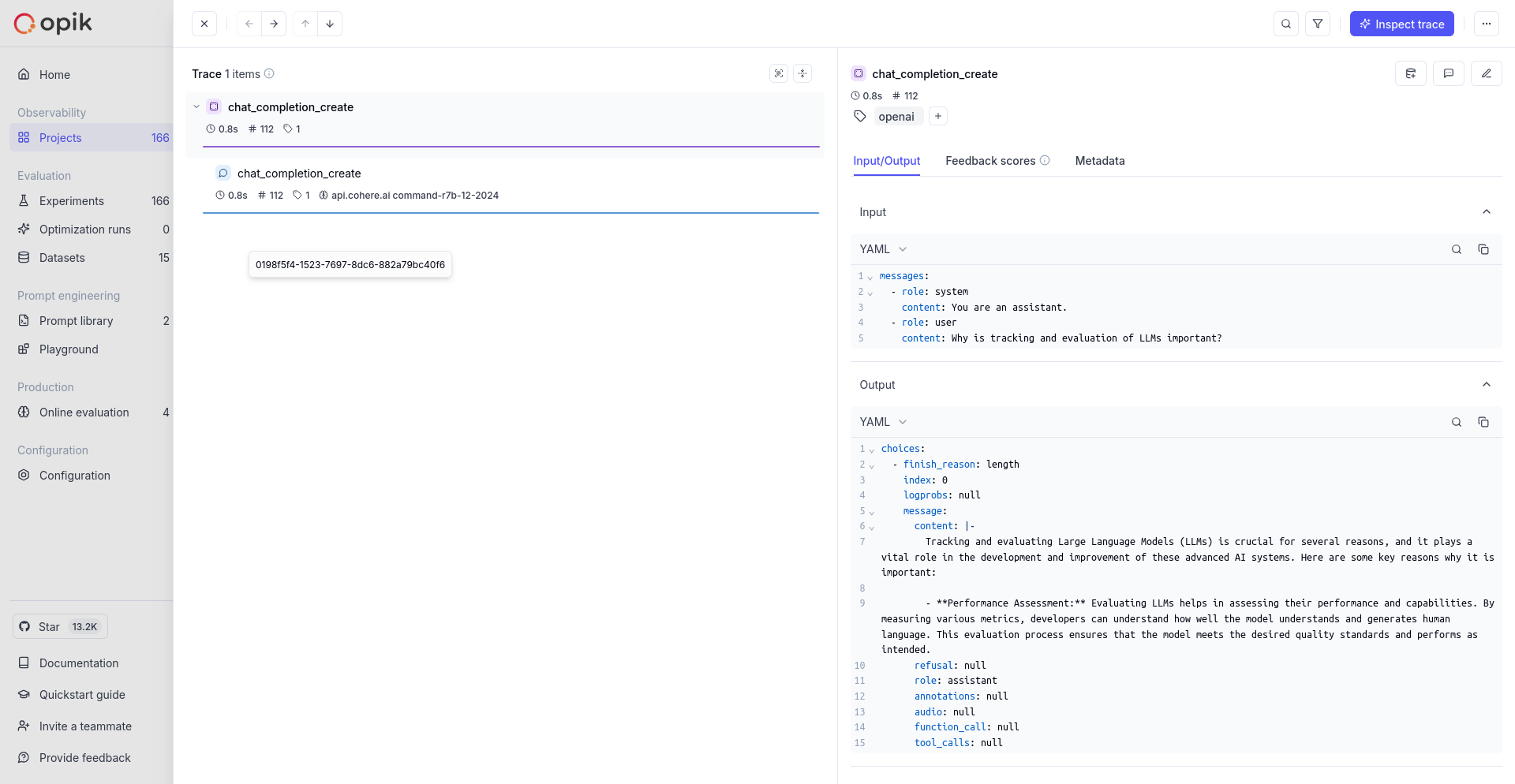
This guide explains how to integrate Opik with Cohere using the OpenAI SDK Compatibility API. By using the track_openai method provided by opik with Cohere's compatibility endpoint, you can easily track and evaluate your Cohere API calls within your Opik projects as Opik will automatically log the input prompt, model used, token usage, and response generated.
Getting Started
Section titled “Getting Started”Configuring Opik
Section titled “Configuring Opik”To start tracking your Cohere LLM calls, you'll need to have both opik and openai packages installed. You can install them using pip:
pip install opik openaiIn addition, you can configure Opik using the opik configure command which will prompt you for the correct local server address or if you are using the Cloud platform your API key:
opik configureConfiguring Cohere
Section titled “Configuring Cohere”You'll need to set your Cohere API key as an environment variable:
export COHERE_API_KEY="YOUR_API_KEY"Tracking Cohere API calls
Section titled “Tracking Cohere API calls”Leverage the OpenAI Compatibility API by replacing the base URL with Cohere's endpoint when initializing the client:
import os
from opik.integrations.openai import track_openai
from openai import OpenAI

client = OpenAI(
    api_key=os.environ.get("COHERE_API_KEY"),
    base_url="https://api.cohere.ai/compatibility/v1"  # Cohere Compatibility API endpoint
)

client = track_openai(client)

response = client.chat.completions.create(
    model="command-r7b-12-2024",  # Replace with the desired Cohere model
    messages=[
        {"role": "system", "content": "You are an assistant."},
        {"role": "user", "content": "Why is tracking and evaluation of LLMs important?"}
    ],
    temperature=0.7,
    max_tokens=100
)

print(response.choices[0].message.content)
The track_openai will automatically track and log the API call, including the input prompt, model used, and response generated. You can view these logs in your Opik project dashboard.
Using Cohere within a tracked function
Section titled “Using Cohere within a tracked function”If you are using Cohere within a function tracked with the @track decorator, you can use the tracked client as normal:
from opik import track
from opik.integrations.openai import track_openai
from openai import OpenAI
import os

client = OpenAI(
    api_key=os.environ.get("COHERE_API_KEY"),
    base_url="https://api.cohere.ai/compatibility/v1"
)
tracked_client = track_openai(client)

@track
def generate_story(prompt):
    response = tracked_client.chat.completions.create(
        model="command-r7b-12-2024",
        messages=[
            {"role": "user", "content": prompt}
        ]
    )
    return response.choices[0].message.content

@track
def generate_topic():
    prompt = "Generate a topic for a story about Opik."
    response = tracked_client.chat.completions.create(
        model="command-r7b-12-2024",
        messages=[
            {"role": "user", "content": prompt}
        ]
    )
    return response.choices[0].message.content

@track
def generate_opik_story():
    topic = generate_topic()
    story = generate_story(topic)
    return story

generate_opik_story()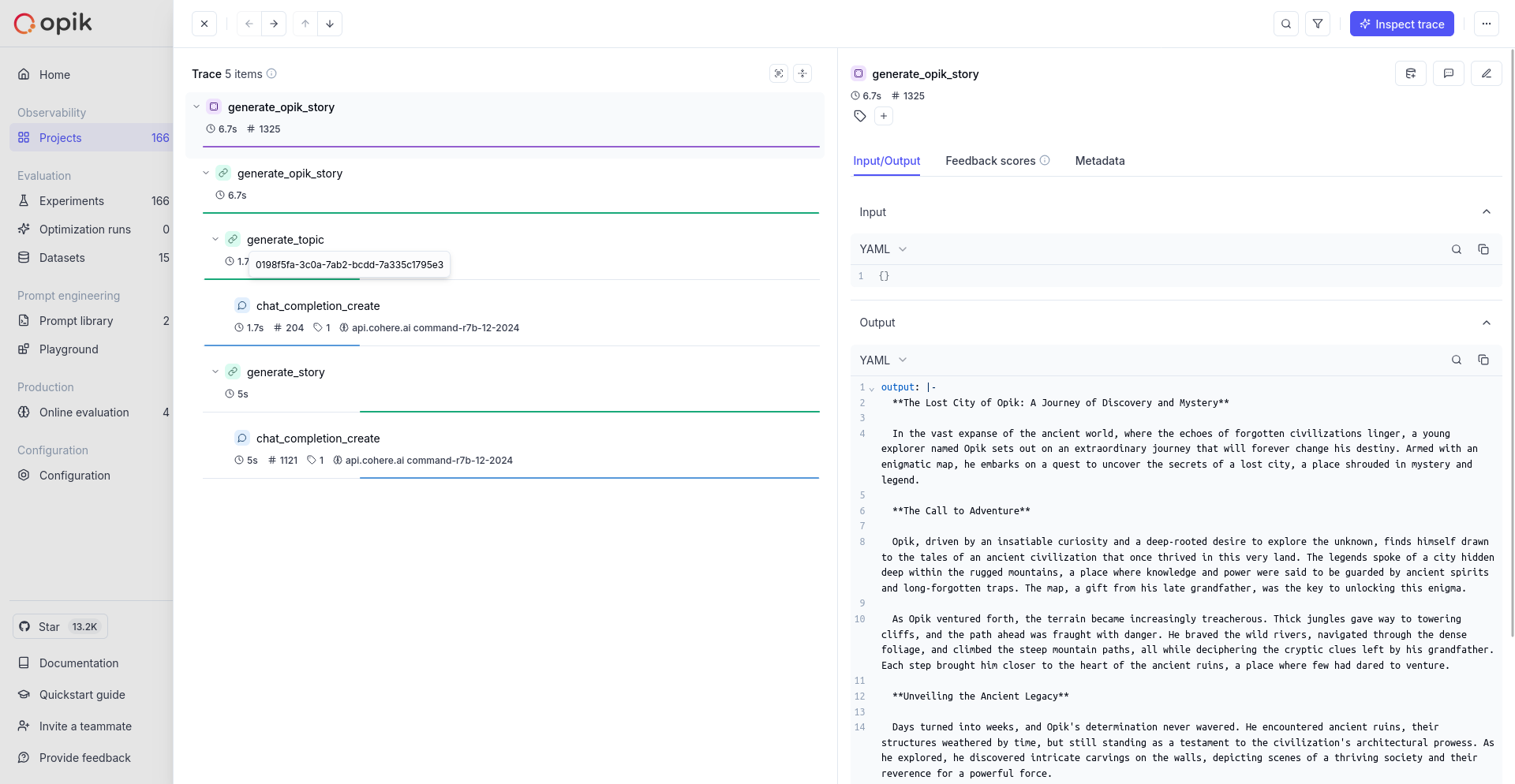
Supported Cohere models
Section titled “Supported Cohere models”The track_openai wrapper with Cohere's compatibility API supports the following Cohere models:
command-r7b-12-2024- Command R 7B modelcommand-r-plus- Command R Plus modelcommand-r- Command R modelcommand-light- Command Light modelcommand- Command model
Supported OpenAI methods
Section titled “Supported OpenAI methods”The track_openai wrapper supports the following OpenAI methods when used with Cohere:
client.chat.completions.create(), including support for stream=True modeclient.beta.chat.completions.parse()client.beta.chat.completions.stream()client.responses.create()
If you would like to track another OpenAI method, please let us know by opening an issue on GitHub.