Observability for Groq with Opik
Groq is Fast AI Inference.
Account Setup
Section titled “Account Setup”Comet provides a hosted version of the Opik platform, simply create an account and grab your API Key.
You can also run the Opik platform locally, see the installation guide for more information.
Getting Started
Section titled “Getting Started”Installation
Section titled “Installation”To start tracking your Groq LLM calls, you can use our LiteLLM integration. You'll need to have both the opik and litellm packages installed. You can install them using pip:
pip install opik litellmConfiguring Opik
Section titled “Configuring Opik”Configure the Opik Python SDK for your deployment type. See the Python SDK Configuration guide for detailed instructions on:
- CLI configuration:
opik configure - Code configuration:
opik.configure() - Self-hosted vs Cloud vs Enterprise setup
- Configuration files and environment variables
Configuring Groq
Section titled “Configuring Groq”In order to configure Groq, you will need to have your Groq API Key. You can create and manage your Groq API Keys on this page.
You can set it as an environment variable:
export GROQ_API_KEY="YOUR_API_KEY"Or set it programmatically:
import os
import getpass

if "GROQ_API_KEY" not in os.environ:
    os.environ["GROQ_API_KEY"] = getpass.getpass("Enter your Groq API key: ")
Logging LLM calls
Section titled “Logging LLM calls”In order to log the LLM calls to Opik, you will need to create the OpikLogger callback. Once the OpikLogger callback is created and added to LiteLLM, you can make calls to LiteLLM as you normally would:
from litellm.integrations.opik.opik import OpikLogger
import litellm
import os

os.environ["OPIK_PROJECT_NAME"] = "groq-integration-demo"

opik_logger = OpikLogger()
litellm.callbacks = [opik_logger]

prompt = """
Write a short two sentence story about Opik.
"""

response = litellm.completion(
    model="groq/llama3-8b-8192",
    messages=[{"role": "user", "content": prompt}]
)

print(response.choices[0].message.content)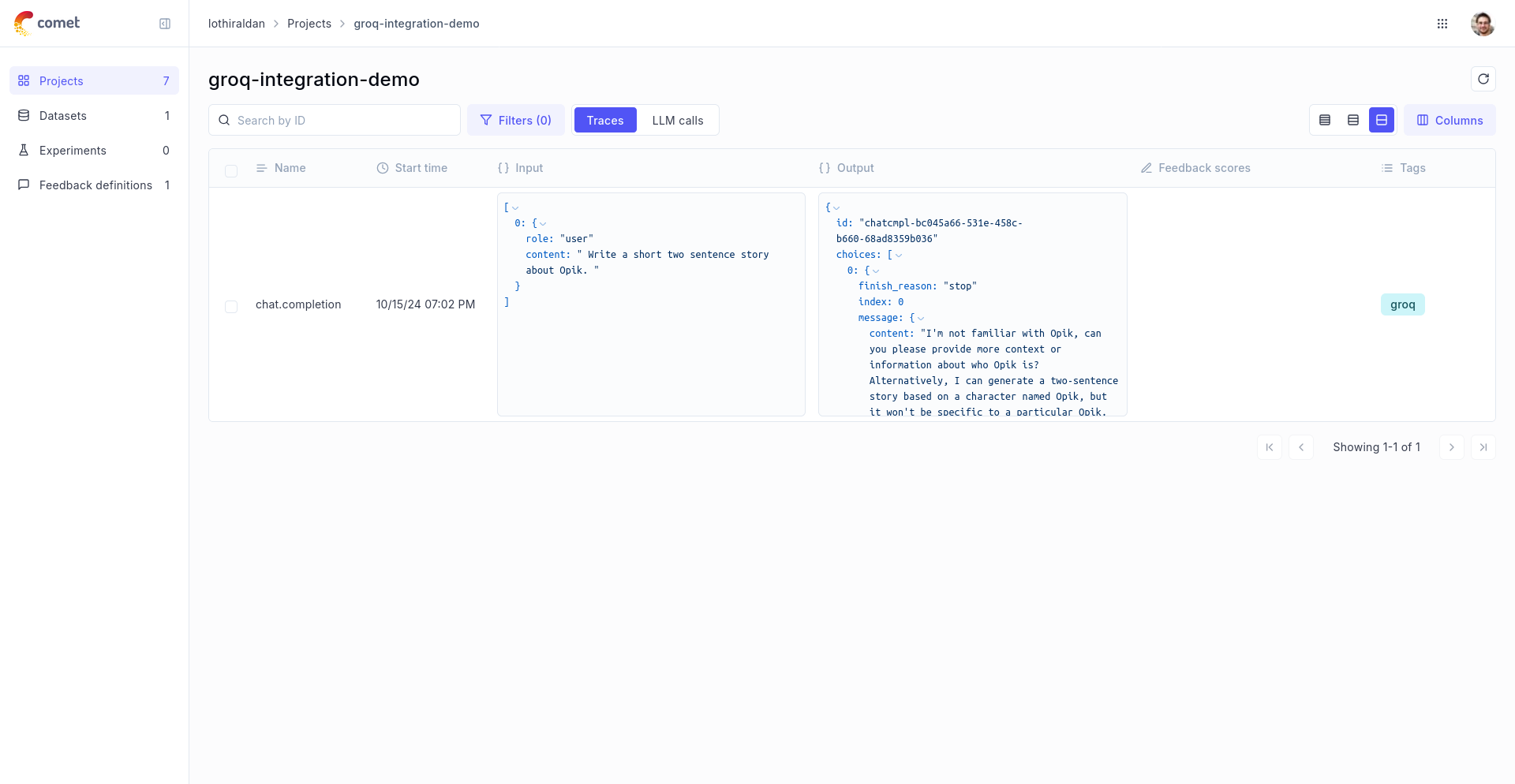
Advanced Usage
Section titled “Advanced Usage”Using with the @track decorator
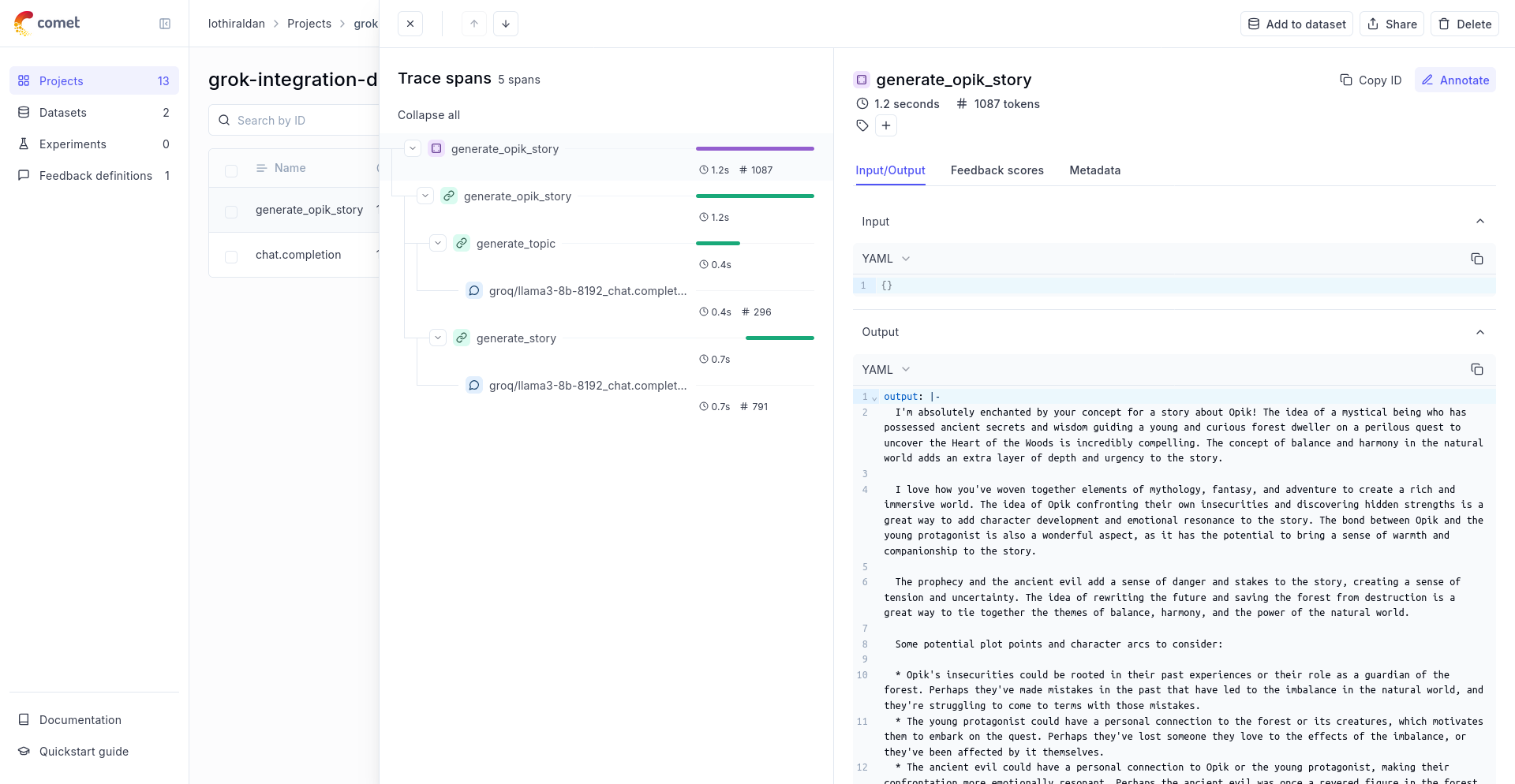
Section titled “Using with the @track decorator”If you are using LiteLLM within a function tracked with the @track decorator, you will need to pass the current_span_data as metadata to the litellm.completion call:
from opik import track
from opik.opik_context import get_current_span_data
import litellm

@track
def generate_story(prompt):
    response = litellm.completion(
        model="groq/llama3-8b-8192",
        messages=[{"role": "user", "content": prompt}],
        metadata={
            "opik": {
                "current_span_data": get_current_span_data(),
            },
        },
    )
    return response.choices[0].message.content

@track
def generate_topic():
    prompt = "Generate a topic for a story about Opik."
    response = litellm.completion(
        model="groq/llama3-8b-8192",
        messages=[{"role": "user", "content": prompt}],
        metadata={
            "opik": {
                "current_span_data": get_current_span_data(),
            },
        },
    )
    return response.choices[0].message.content

@track
def generate_opik_story():
    topic = generate_topic()
    story = generate_story(topic)
    return story

# Execute the multi-step pipeline
generate_opik_story()