
Observability for Harbor with Opik
Harbor is a benchmark evaluation framework for autonomous LLM agents. It provides standardized infrastructure for running agents against benchmarks like SWE-bench, LiveCodeBench, Terminal-Bench, and others.
Harbor enables you to evaluate LLM agents on complex coding tasks, tracking their trajectories using the ATIF (Agent Trajectory Interchange Format) specification.
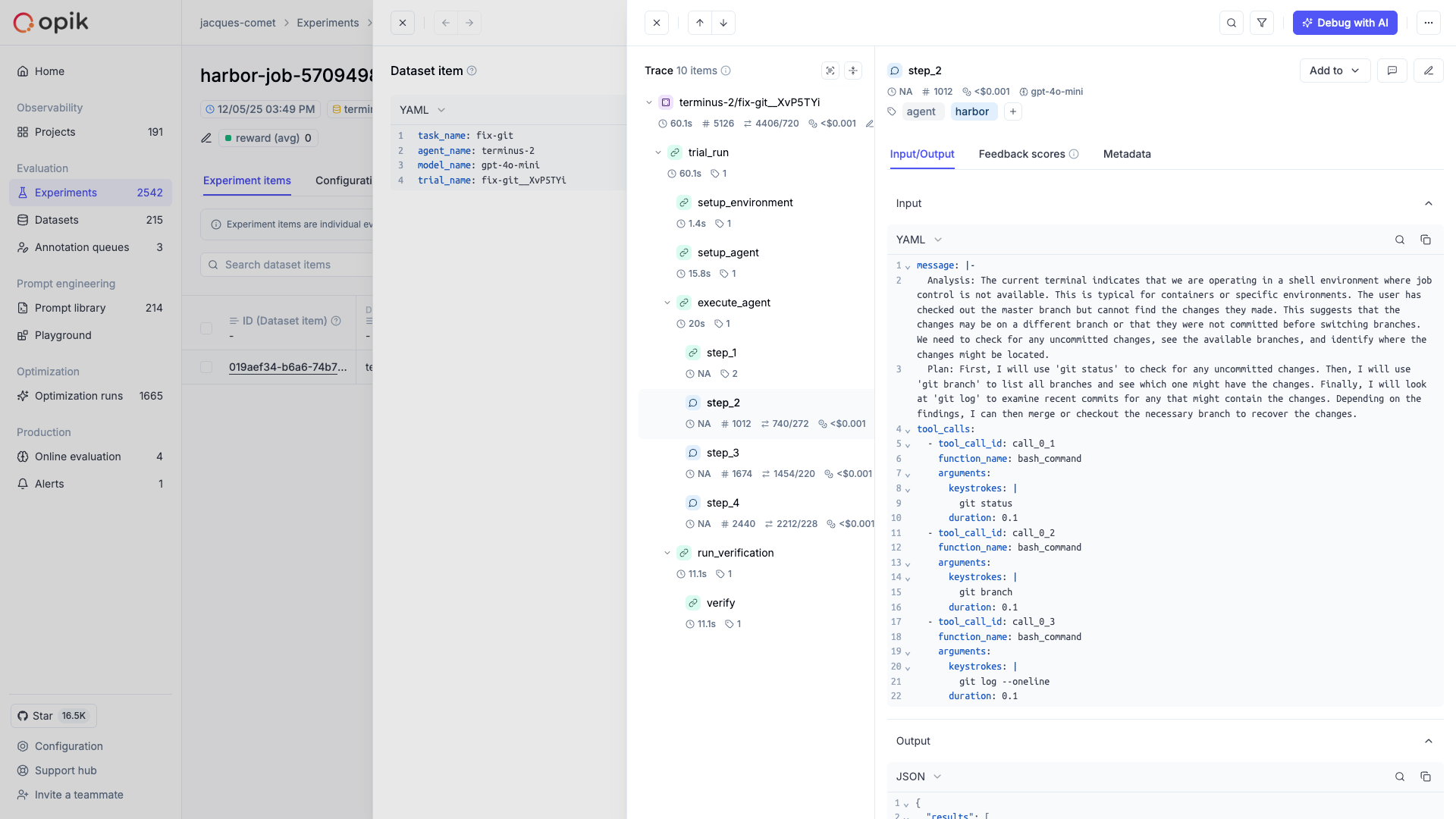
Opik integrates with Harbor to log traces for all trial executions, including:
- Trial results as Opik traces with timing, metadata, and feedback scores from verifier rewards
- Trajectory steps as nested spans showing the complete agent-environment interaction
- Tool calls and observations as detailed execution records
- Token usage and costs aggregated from ATIF metrics
Account Setup
Section titled “Account Setup”Comet provides a hosted version of the Opik platform, simply create an account and grab your API Key.
You can also run the Opik platform locally, see the installation guide for more information.
Getting Started
Section titled “Getting Started”Installation
Section titled “Installation”First, ensure you have both opik and harbor installed:
pip install opik harborConfiguring Opik
Section titled “Configuring Opik”Configure the Opik Python SDK for your deployment type. See the Python SDK Configuration guide for detailed instructions on:
- CLI configuration:
opik configure - Code configuration:
opik.configure() - Self-hosted vs Cloud vs Enterprise setup
- Configuration files and environment variables
Configuring Harbor
Section titled “Configuring Harbor”Harbor requires configuration for the agent and benchmark you want to evaluate. Refer to the Harbor documentation for details on setting up your job configuration.
Using the CLI
Section titled “Using the CLI”The easiest way to use Harbor with Opik is through the opik harbor CLI command. This automatically enables Opik tracking for all trial executions without modifying your code.
Basic Usage
Section titled “Basic Usage”# Run a benchmark with Opik tracking
opik harbor run -d terminal-bench@head -a terminus_2 -m gpt-4.1
# Use a configuration file
opik harbor run -c config.yamlSpecifying Project Name
Section titled “Specifying Project Name”# Set project name via environment variable
export OPIK_PROJECT_NAME=my-benchmark
opik harbor run -d swebench@liteAvailable CLI Commands
Section titled “Available CLI Commands”All Harbor CLI commands are available as subcommands:
# Run a job (alias for jobs start)
opik harbor run [HARBOR_OPTIONS]

# Job management
opik harbor jobs start [HARBOR_OPTIONS]
opik harbor jobs resume -p ./jobs/my-job

# Single trial
opik harbor trials start -p ./my-task -a terminus_2
CLI Help
Section titled “CLI Help”# View available options
opik harbor --help
opik harbor run --helpExample: SWE-bench Evaluation
Section titled “Example: SWE-bench Evaluation”Here's a complete example running a SWE-bench evaluation with Opik tracking:
# Configure Opik
opik configure

# Set project name
export OPIK_PROJECT_NAME=swebench-claude-sonnet

# Run SWE-bench evaluation with tracking
opik harbor run \
    -d swebench-lite@head \
    -a claude-code \
    -m claude-3-5-sonnet-20241022
Custom Agents
Section titled “Custom Agents”Harbor supports integrating your own custom agents without modifying the Harbor source code. There are two types of agents you can create:
- External agents - Interface with the environment through the
BaseEnvironmentinterface, typically by executing bash commands - Installed agents - Installed directly into the container environment and executed in headless mode
For details on implementing custom agents, see the Harbor Agents documentation.
Running Custom Agents with Opik
Section titled “Running Custom Agents with Opik”To run a custom agent with Opik tracking, use the --agent-import-path flag:
opik harbor run -d "terminal-bench@head" --agent-import-path path.to.agent:MyCustomAgentTracking Custom Agent Functions
Section titled “Tracking Custom Agent Functions”When building custom agents, you can use Opik's @track decorator on methods within your agent implementation. These decorated functions will automatically be captured as spans within the trial trace, giving you detailed visibility into your agent's internal logic:
from harbor.agents.base import BaseAgent
from opik import track

class MyCustomAgent(BaseAgent):
    @staticmethod
    def name() -> str:
        return "my-custom-agent"

    @track
    async def plan_next_action(self, observation: str) -> str:
        # This function will appear as a span in Opik
        # Add your planning logic here
        return action

    @track
    async def execute_tool(self, tool_name: str, args: dict) -> str:
        # This will also be tracked as a nested span
        result = await self._run_tool(tool_name, args)
        return result

    async def run(self, instruction: str, environment, context) -> None:
        # Your main agent loop
        while not done:
            observation = await environment.exec("pwd")
            action = await self.plan_next_action(observation)
            result = await self.execute_tool(action.tool, action.args)
This allows you to trace not just the ATIF trajectory steps, but also the internal decision-making processes of your custom agent.
What Gets Logged
Section titled “What Gets Logged”Each trial completion creates an Opik trace with:
- Trial name and task information as the trace name and input
- Agent execution timing as start/end times
- Verifier rewards (e.g., pass/fail, tests passed) as feedback scores
- Agent and model metadata
- Exception information if the trial failed
Trajectory Spans
Section titled “Trajectory Spans”The integration automatically creates spans for each step in the agent's trajectory, giving you detailed visibility into the agent-environment interaction. Each trajectory step becomes a span showing:
- The step source (user, agent, or system)
- The message content
- Tool calls and their arguments
- Observation results from the environment
- Token usage and cost per step
- Model name for agent steps
Verifier Rewards as Feedback Scores
Section titled “Verifier Rewards as Feedback Scores”Harbor's verifier produces rewards like {"pass": 1, "tests_passed": 5}. These are automatically converted to Opik feedback scores, allowing you to:
- Filter traces by pass/fail status
- Aggregate metrics across experiments
- Compare agent performance across benchmarks
Cost Tracking
Section titled “Cost Tracking”The Harbor integration automatically extracts token usage and cost from ATIF trajectory metrics. If your agent records prompt_tokens, completion_tokens, and cost_usd in step metrics, these are captured in Opik spans.
Environment Variables
Section titled “Environment Variables”| Variable | Description |
|---|---|
OPIK_PROJECT_NAME |
Default project name for traces |
OPIK_API_KEY |
API key for Opik Cloud |
OPIK_WORKSPACE |
Workspace name (for Opik Cloud) |
Getting Help
Section titled “Getting Help”- Check the Harbor documentation for agent and benchmark setup
- Review the ATIF specification for trajectory format details
- Open an issue on GitHub for Opik integration questions