
Log conversations
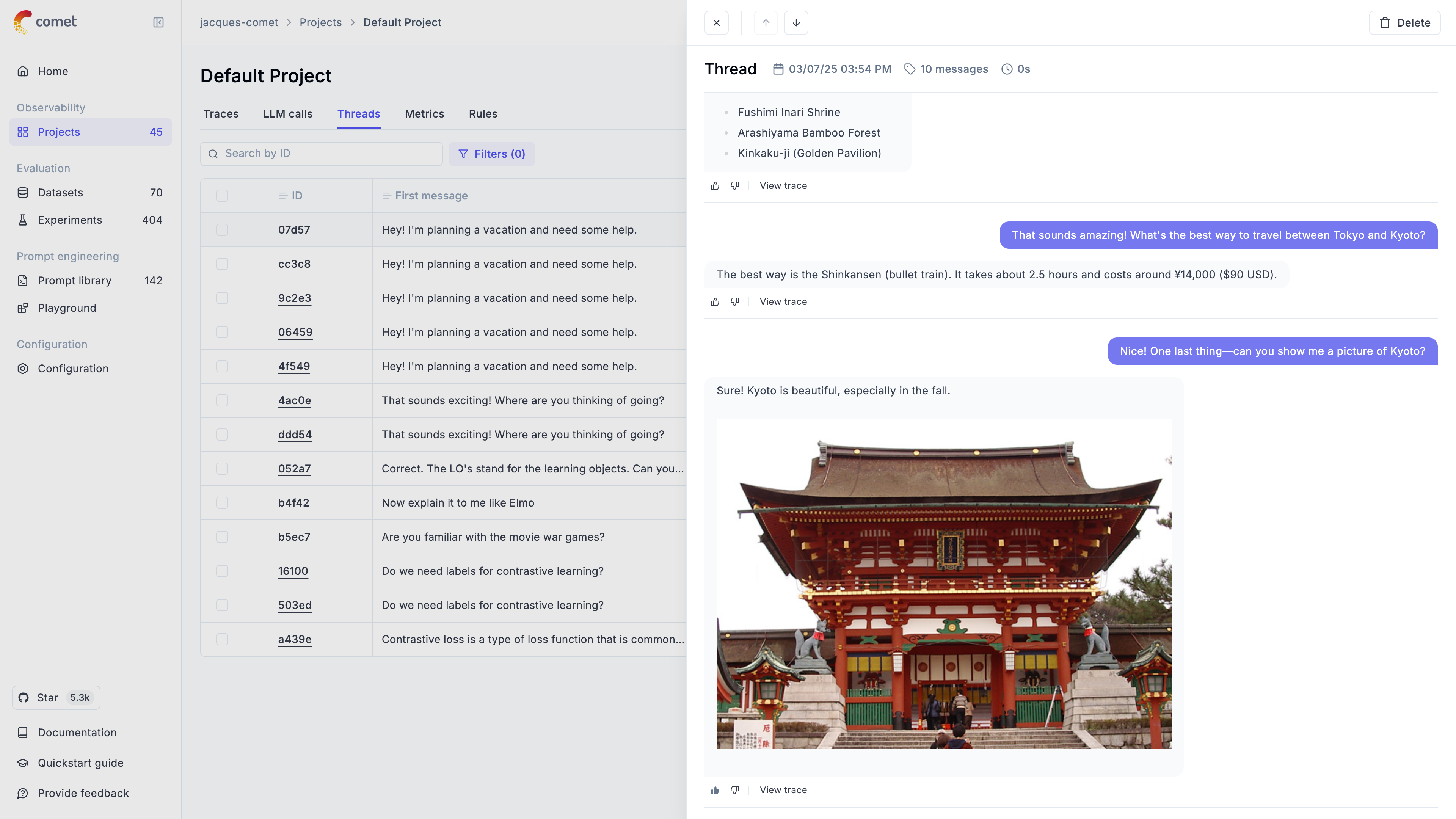
You can log chat conversations to the Opik platform and track the full conversations your users are having with your chatbot. Threads allow you to group related traces together, creating a conversational flow that makes it easy to review multi-turn interactions and track user sessions.
Understanding Threads
Section titled “Understanding Threads”Threads in Opik are collections of traces that are grouped together using a unique thread_id. This is particularly useful for:
- Multi-turn conversations: Track complete chat sessions between users and AI assistants
- User sessions: Group all interactions from a single user session
- Conversational agents: Follow the flow of agent interactions and tool usage
- Workflow tracking: Monitor complex workflows that span multiple function calls
The thread_id is a user-defined identifier that must be unique per project. All traces with the same thread_id will be grouped together and displayed as a single conversation thread in the Opik UI.
Logging conversations
Section titled “Logging conversations”You can log chat conversations by specifying the thread_id parameter when using either the low level SDK, Python decorators, or integration libraries:
import { Opik } from "opik";

const client = new Opik({
apiUrl: "https://www.comet.com/opik/api", // Only required if you are using Opik Cloud
apiKey: "your-api-key",
projectName: "your-project-name",
workspaceName: "your-workspace-name", // Optional
});

const threadId = "your-thread-id"; // any unique string per conversation

// Option A: set on trace creation
const trace = client.trace({
    name: "chat turn",
    input: { user: "Hi there" },
    output: { assistant: "Hello!" },
    threadId
});import opik
from opik import opik_context
@opik.track
def chat_message(input):
return "Opik is an Open Source GenAI platform"
chat_message("What is Opik ?", opik_args={"trace": {"thread_id": "f174a"}})
# Alternatively, using the opik_context module
@opik.track
def chat_message(input):
thread_id = "f174a"
opik_context.update_current_trace(
thread_id=thread_id
)
return "Opik is an Open Source GenAI platform"
chat_message("What is Opik ?", thread_id)import opik
opik_client = opik.Opik()
thread_id = "55d84"
# Log a first message
trace = opik_client.trace(
name="chat_conversation",
input="What is Opik?",
output="Opik is an Open Source GenAI platform",
thread_id=thread_id
)# LangGraph automatically uses its thread_id as Opik thread_id
from langgraph.graph import StateGraph
from opik.integrations.langchain import OpikTracer
# Create your LangGraph workflow
graph = StateGraph(...)
compiled_graph = graph.compile()
# Configure with thread_id for conversation tracking
thread_id = "user-conversation-789"
config = {
"callbacks": [OpikTracer(project_name="langgraph-conversations")],
"configurable": {"thread_id": thread_id}
}
# First turn in conversation
result1 = compiled_graph.invoke(
{"messages": [{"role": "user", "content": "What is machine learning?"}]},
config=config
)
# Follow-up turn in same conversation thread
result2 = compiled_graph.invoke(
{"messages": [{"role": "user", "content": "Can you give me an example?"}]},
config=config
)# ADK automatically maps session_id to thread_id
from opik.integrations.adk import OpikTracer
from google.adk import sessions as adk_sessions, runners as adk_runners
# Create ADK session for conversation tracking
session_service = adk_sessions.InMemorySessionService()
session = session_service.create_session_sync(
app_name="my_chatbot",
user_id="user_123",
session_id="conversation_456" # This becomes the thread_id in Opik
)
opik_tracer = OpikTracer(project_name="adk-conversations")
runner = adk_runners.Runner(
agent=your_agent,
app_name="my_chatbot",
session_service=session_service
)
# First message - automatically grouped by session_id
result1 = runner.run(
user_id="user_123",
session_id="conversation_456",
new_message="What is machine learning?"
)
# Follow-up message - same conversation thread
result2 = runner.run(
user_id="user_123",
session_id="conversation_456",
new_message="Can you give me an example?"
)# Using trace context manager with group_id for threading
import uuid
from opik import trace
thread_id = str(uuid.uuid4())
# First conversation turn
with trace(workflow_name="Agent Conversation", group_id=thread_id):
result1 = await Runner.run(agent, "What is machine learning?")
print(result1.final_output)
# Follow-up turn in same conversation
with trace(workflow_name="Agent Conversation", group_id=thread_id):
# Continue conversation with context
new_input = result1.to_input_list() + [
{"role": "user", "content": "Can you give me an example?"}
]
result2 = await Runner.run(agent, new_input)
print(result2.final_output)Thread ID Best Practices
Section titled “Thread ID Best Practices”Generating Thread IDs
Section titled “Generating Thread IDs”Choose a thread ID strategy that fits your application:
import uuid
import opik

# Generate unique thread ID per user session
user_id = "user_12345"
session_start_time = "2024-01-15T10:30:00Z"
thread_id = f"{user_id}-{session_start_time}"

@opik.track
def process_user_message(message, user_id):
    return "Response to: " + message

process_user_message("What is Opik ?", opik_args={"trace": {"thread_id": thread_id}})import uuid
import opik
# Generate random UUID for each conversation
thread_id = str(uuid.uuid4()) # e.g., "f47ac10b-58cc-4372-a567-0e02b2c3d479"
@opik.track
def start_conversation(initial_message):
return f"Processing: {initial_message}"
start_conversation("What is Opik ?", opik_args={"trace": {"thread_id": thread_id}})import time
import opik
# Use timestamp for time-based grouping
thread_id = f"conversation-{int(time.time())}"
@opik.track
def handle_conversation_turn(message):
return f"Response to: {message}"
handle_conversation_turn("What is Opik ?", opik_args={"trace": {"thread_id": thread_id}})Integration-Specific Threading
Section titled “Integration-Specific Threading”Different integrations handle thread IDs in various ways:
from opik.integrations.langchain import OpikTracer

# Set thread_id at tracer level - applies to all traces
opik_tracer = OpikTracer(
    project_name="my-chatbot",
    thread_id="conversation-123"
)

# Or pass dynamically via metadata
chain.invoke(
    {"input": "Hello"},
    config={
        "callbacks": [opik_tracer],
        "metadata": {"thread_id": "dynamic-conversation-456"}
    }
)from opik.integrations.langchain import OpikTracer
# LangGraph automatically uses its thread_id as Opik thread_id
thread_id = "langgraph-conversation-789"
config = {
"callbacks": [OpikTracer()],
"configurable": {"thread_id": thread_id}
}
result = compiled_graph.invoke(input_data, config=config)import uuid
from opik import trace
# Use trace context manager with group_id for threading
thread_id = str(uuid.uuid4())
with trace(workflow_name="Agent Conversation", group_id=thread_id):
# All agent interactions within this context share the thread_id
result1 = await Runner.run(agent, "First question")
result2 = await Runner.run(agent, "Follow-up question")from google import genai
from opik.integrations.genai import track_genai
client = genai.Client()
gemini_client = track_genai(client, project_name="opik_args demo")
response = gemini_client.models.generate_content(
model="gemini-2.0-flash",
contents="What is Opik?",
opik_args={"trace": {"thread_id": "f174a"}}
)import openai
from opik.integrations.openai import track_openai
client = openai.OpenAI()
wrapped_client = track_openai(
openai_client=client,
project_name="opik_args demo",
)
messages = [
{"role": "system", "content": "You are a helpful assistant."},
{"role": "user", "content": "What is Opik?"},
]
_ = wrapped_client.responses.create(
model="gpt-4o-mini",
input=messages,
opik_args={"trace": {"thread_id": "f174a"}}
)Reviewing conversations
Section titled “Reviewing conversations”Conversations can be viewed at a project level in the threads tab. All conversations are tracked and by clicking on the thread ID you will be able to
view the full conversation.
The thread view supports markdown making it easier for you to review the content that was returned to the user. If you would like to dig in deeper, you
can click on the View trace button to deepdive into how the AI assistant response was generated.
By clicking on the thumbs up or thumbs down icons, you can quickly rate the AI assistant response. This feedback score will be logged and associated to the relevant trace. By switching to the trace view, you can review the full trace as well as add additional feedback scores through the annotation functionality.

Scoring conversations
Section titled “Scoring conversations”You can assign conversation-level feedback scores to threads at any time. Threads are aggregated traces
that are created when tracking agents or simply traces interconnected by a thread_id.
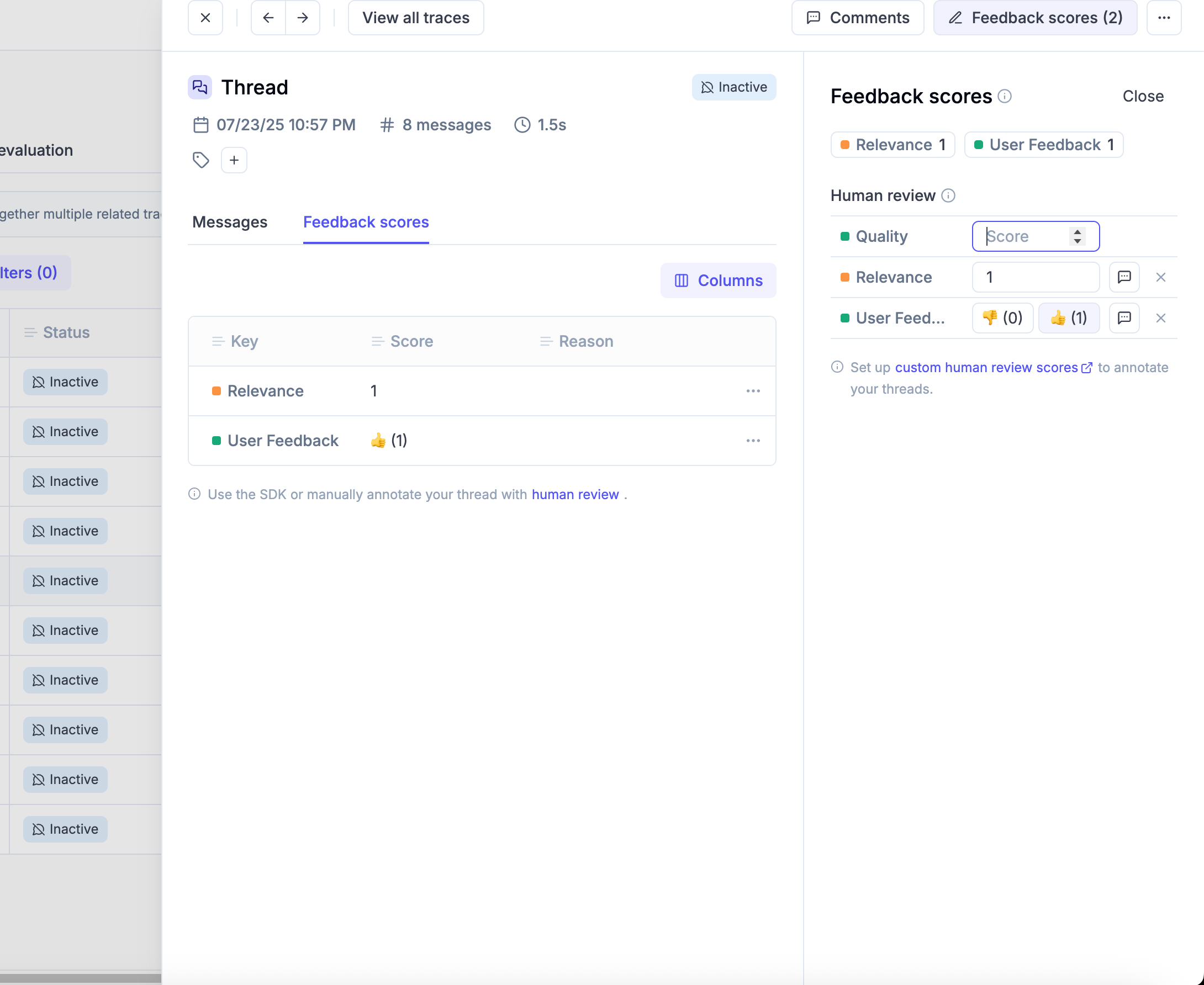
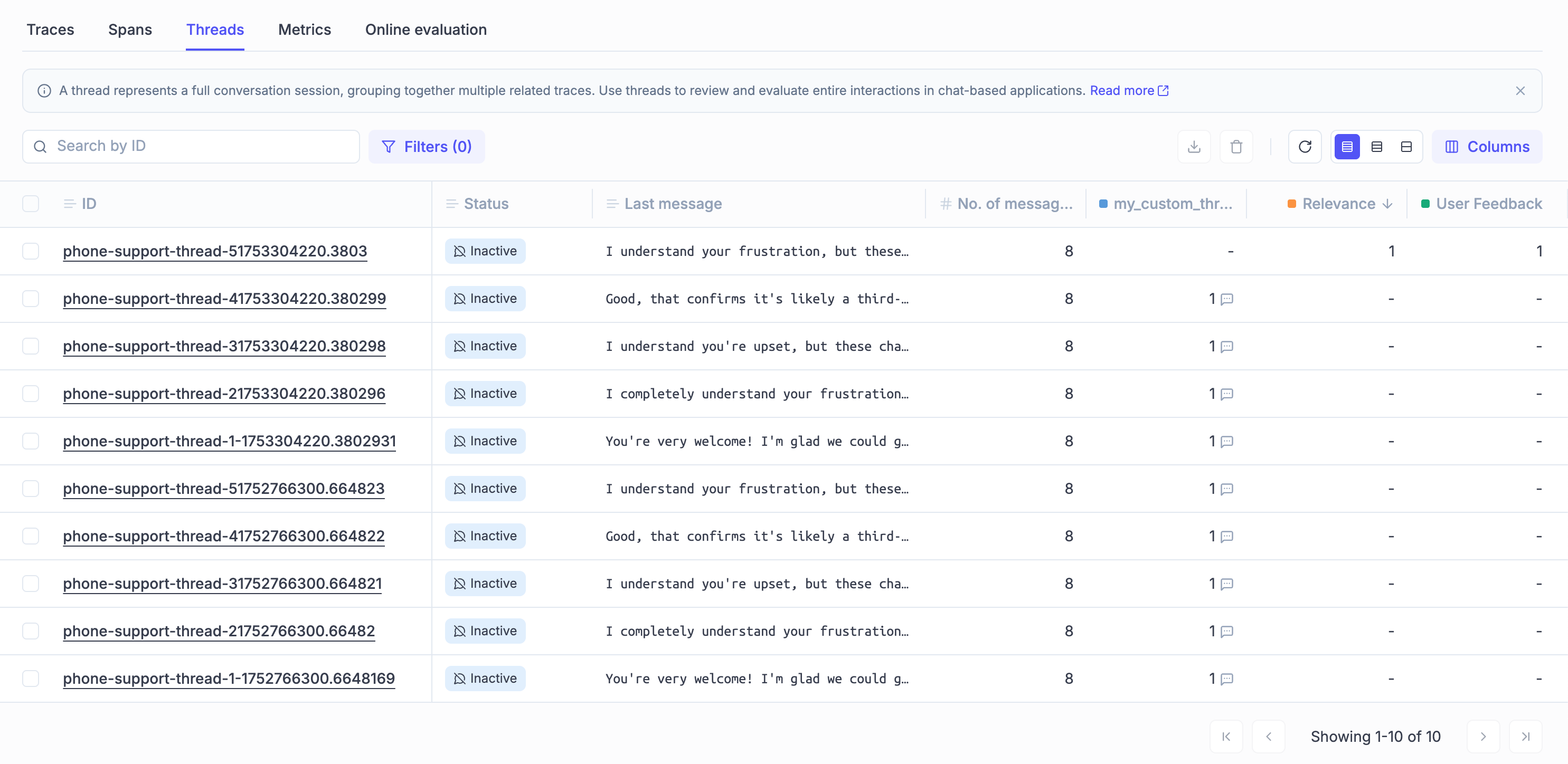
In the conversation list, you can see the feedback scores associated to each thread.
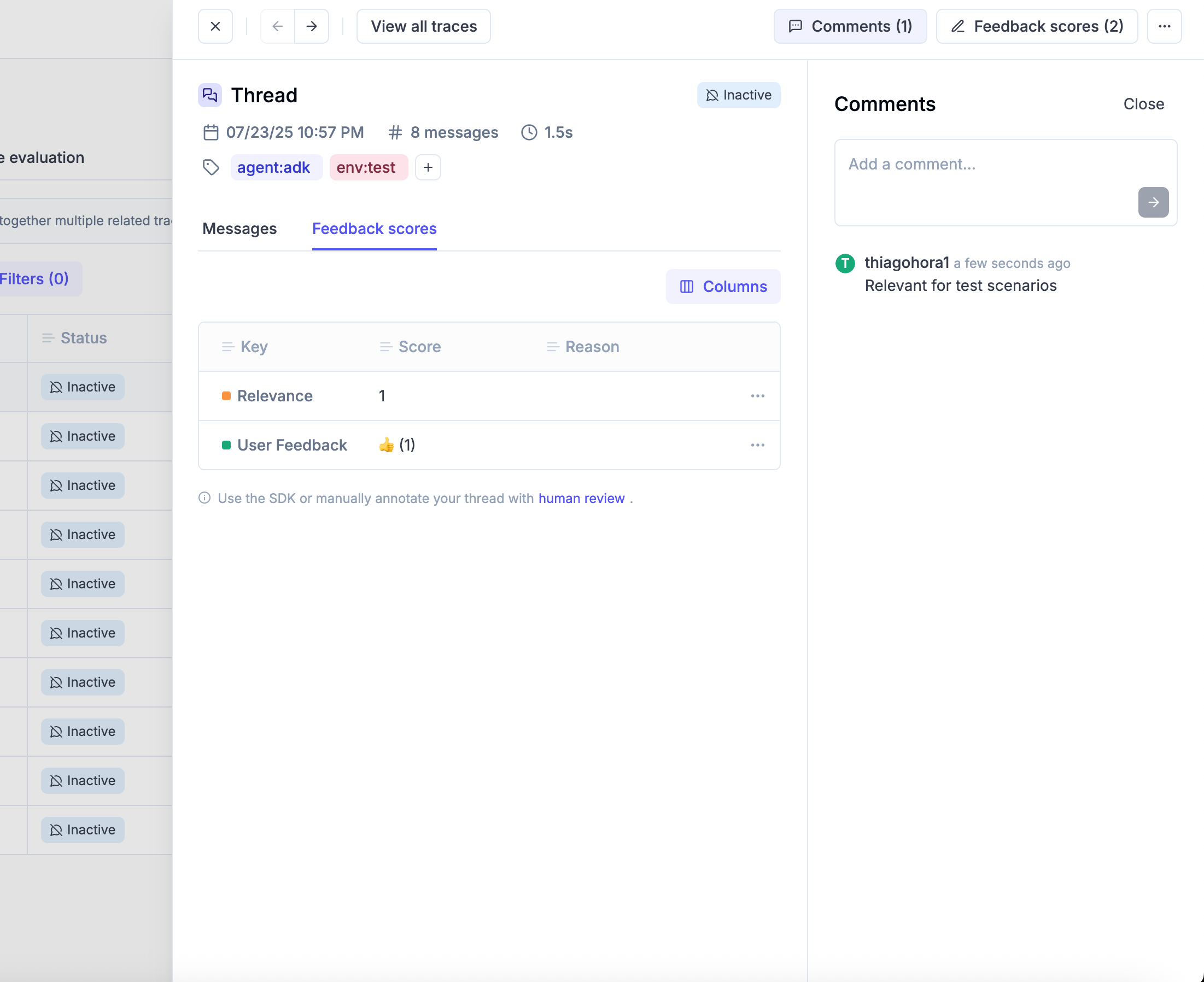
You can also tag a thread and add comments to it. This is useful to add additional context during the review process or investigate a specific conversation.
Thread Online Scoring Rule Cooldown Period
Section titled “Thread Online Scoring Rule Cooldown Period”For thread-level online evaluation rules (automatic scoring), Opik waits for a "cooldown period" after the last activity in a thread before running the rules. This gives conversations time to settle before automatic evaluation.
Behavior When Adding Traces to Existing Threads
Section titled “Behavior When Adding Traces to Existing Threads”When a new trace is added to an existing thread, the following happens:
- Existing feedback scores are preserved: Any manual feedback scores or online evaluation scores you have added remain intact.
- The cooldown timer restarts: The timer resets from the moment the new trace is added, ensuring online evaluation waits for the full cooldown period before scoring the updated thread.
- Online evaluation re-runs: Once the cooldown period expires, thread-level online scoring rules will automatically evaluate the complete conversation again. If a new score is logged with the same name as an existing score, the existing score is updated.
Advanced Thread Features
Section titled “Advanced Thread Features”Filtering and Searching Threads
Section titled “Filtering and Searching Threads”You can filter threads using the thread_id field in various Opik features:
In Data Export
Section titled “In Data Export”When exporting data, you can filter by thread_id using these operators:
=(equals),!=(not equals)contains,not_containsstarts_with,ends_with>,<(lexicographic comparison)
In Thread Evaluation
Section titled “In Thread Evaluation”You can evaluate entire conversation threads using the thread evaluation features. This is particularly useful for:
- Conversation quality assessment
- Multi-turn coherence evaluation
- User satisfaction scoring across complete interactions
Thread Management
Section titled “Thread Management”Threads can have traces added to them at any time, and you can add feedback scores, comments, and tags to threads regardless of whether new traces are still being added.
Programmatic Thread Management
Section titled “Programmatic Thread Management”You can also manage threads programmatically using the Opik SDK:
import opik

# Initialize client
client = opik.Opik()

# Search for threads by various criteria
threads = client.search_traces(
    project_name="my-chatbot",
    filter_string='thread_id contains "user-session"'
)

# Get specific thread content
for trace in threads:
    if trace.thread_id:
        thread_content = client.get_trace_content(trace.id)
        print(f"Thread: {trace.thread_id}")
        print(f"Input: {thread_content.input}")
        print(f"Output: {thread_content.output}")

# Add feedback scores to thread traces
for trace in threads:
    trace.log_feedback_score(
        name="conversation_quality",
        value=0.8,
        reason="Good multi-turn conversation flow"
    )
Next steps
Section titled “Next steps”Once you have added observability to your multi-turn agent, why not:
- Run offline multi-turn conversation evaluation
- Create online evaluation rules to score your multi-turn conversations in production