
Log media & attachments
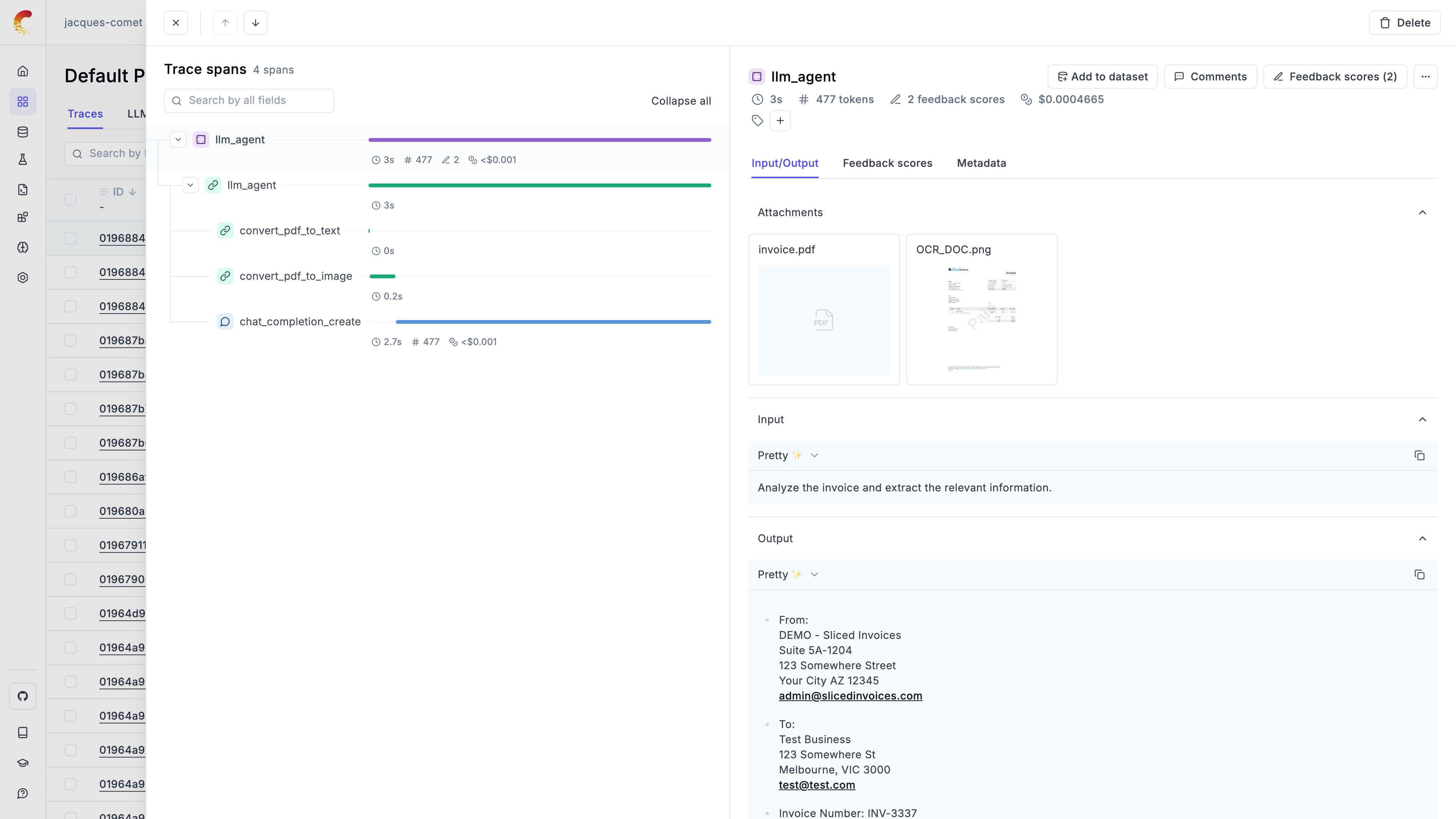
Opik supports multimodal traces allowing you to track not just the text input and output of your LLM, but also images, videos and audio and any other media.
Size limits
Section titled “Size limits”To keep ingestion fast and reliable, Opik enforces size limits on inline content - what you put
directly in a span/trace input, output, or metadata:
- Per field (~20 MB): keep each inline, non-media
input/outputfield under ~20 MB - the same cap also applies toinputandoutputcombined. Recent Opik SDK versions truncate an oversizedinput/outputclient-side before sending (replacing it with a truncation marker and logging a warning), so individual spans and traces stay within the limit.metadatais not truncated - keep it small too, since it still counts toward the per-request limit below. - Per request: a single ingestion batch is capped at roughly ~50 MB compressed and
~256 MB uncompressed; larger requests are rejected with
413.
Base64-encoded content is handled separately and is not bound by the two limits above. When you embed a large base64 blob in a field - images, audio, video, PDFs, and other recognized formats such as JSON - the SDK automatically extracts anything larger than ~250 KB and uploads it as an attachment
- a separate upload, not part of the JSON ingestion request - so a single embedded value can be up to 100 MB. See Embedded base64 size limits below.
Attachments are the recommended way to keep large content without hitting these limits: instead of
embedding a large payload inline in input/output, log it as an attachment (below). The full
payload is stored via object storage while your traces stay lightweight. As a rule of thumb, log
summaries, top-K results, or IDs inline and attach anything large.
Logging Attachments
Section titled “Logging Attachments”In the Python SDK, you can use the Attachment type to add files to your traces.
Attachements can be images, videos, audio files or any other file that you might
want to log to Opik.
Each attachment is made up of the following fields:
data: The path to the file, raw bytes, or a base64 encoded string of the filefile_name: Optional name for the attachment (required when using raw bytes without a file path)content_type: The content type of the file formatted as a MIME type
These attachements can then be logged to your traces and spans using The
opik_context.update_current_span and opik_context.update_current_trace
methods:
Using file paths
Section titled “Using file paths”The most common way to log attachments is by providing a file path:
from opik import opik_context, track, Attachment

@track
def my_llm_agent(input):
    # LLM chain code
    # ...

    # Update the trace with a file path
    opik_context.update_current_trace(
        attachments=[
            Attachment(
                data="<path to the image>",
                content_type="image/png",
            )
        ]
    )

    return "World!"

print(my_llm_agent("Hello!"))
Using raw bytes (file-like data)
Section titled “Using raw bytes (file-like data)”You can also pass raw bytes directly to an attachment. This is useful when you have file content in memory (e.g., from an API response, generated content, or streaming data) and don't want to write it to disk first:
from opik import opik_context, track, Attachment

@track
def process_image(image_bytes: bytes):
    # Process the image
    # ...

    # Log the raw bytes as an attachment
    opik_context.update_current_trace(
        attachments=[
            Attachment(
                data=image_bytes,  # Raw bytes
                file_name="processed_image.png",  # Required for bytes
                content_type="image/png",
            )
        ]
    )

    return "Image processed!"

# Example: Reading a file into memory and logging it
with open("image.png", "rb") as f:
    image_data = f.read()

print(process_image(image_data))Logging images from HTTP responses
Section titled “Logging images from HTTP responses”A common use case is logging images fetched from external APIs or URLs:
import httpx
from opik import opik_context, track, Attachment

@track
def analyze_remote_image(image_url: str):
    # Fetch image from URL
    response = httpx.get(image_url)
    image_bytes = response.content
    content_type = response.headers.get("content-type", "image/jpeg")

    # Log the fetched image as an attachment
    opik_context.update_current_trace(
        attachments=[
            Attachment(
                data=image_bytes,
                file_name="remote_image.jpg",
                content_type=content_type,
            )
        ]
    )

    # Process the image...
    return "Image analyzed!"

# Analyze an image from a URL
result = analyze_remote_image("https://example.com/image.jpg")
Logging generated content
Section titled “Logging generated content”You can also log dynamically generated content like charts or reports:
from opik import opik_context, track, Attachment
import json

@track
def generate_report(data: dict):
    # Generate a JSON report
    report_bytes = json.dumps(data, indent=2).encode("utf-8")

    opik_context.update_current_trace(
        attachments=[
            Attachment(
                data=report_bytes,
                file_name="report.json",
                content_type="application/json",
            )
        ]
    )

    return "Report generated!"
Using the Opik client directly
Section titled “Using the Opik client directly”You can also log attachments using the Opik client directly with both file paths and raw bytes:
import opik
from opik import Attachment

client = opik.Opik()

# Create a trace
trace = client.trace(
    name="my-trace",
    input={"query": "Process this data"},
    project_name="my-project",
)

# Log attachment with file path
span_with_file = client.span(
    trace_id=trace.id,
    name="file-attachment-span",
    attachments=[
        Attachment(
            data="/path/to/document.pdf",
            content_type="application/pdf",
        )
    ],
)

# Log attachment with raw bytes
binary_data = b"Hello, this is binary content!"
span_with_bytes = client.span(
    trace_id=trace.id,
    name="bytes-attachment-span",
    attachments=[
        Attachment(
            data=binary_data,
            file_name="data.bin",
            content_type="application/octet-stream",
        )
    ],
)

client.flush()
The attachements will be uploaded to the Opik platform and can be both previewed and dowloaded from the UI.
Managing Attachments Programmatically
Section titled “Managing Attachments Programmatically”You can also manage attachments programmatically using the AttachmentClient:
import opik

opik_client = opik.Opik()
attachment_client = opik_client.get_attachment_client()

# Get list of attachments
attachments_details = attachment_client.get_attachment_list(
    project_name="my-project",
    entity_id="some-trace-uuid-7",
    entity_type="trace"
)

# Download an attachment
attachment_data = attachment_client.download_attachment(
    project_name="my-project",
    entity_type="trace",
    entity_id="some-trace-uuid-7",
    file_name="report.pdf",
    mime_type="application/pdf"
)

# Upload a new attachment
attachment_client.upload_attachment(
    project_name="my-project",
    entity_type="trace",
    entity_id="some-trace-uuid-7",
    file_path="/path/to/document.pdf"
)
Previewing base64 encoded images and image URLs
Section titled “Previewing base64 encoded images and image URLs”Opik automatically detects base64 encoded images and URLs logged to the platform, once an image is detected we will hide the string to make the content more readable and display the image in the UI. This is supported in the tracing view, datasets view and experiment view.
For example if you are using the OpenAI SDK, if you pass an image to the model as a URL, Opik will automatically detect it and display the image in the UI:
from opik.integrations.openai import track_openai
from openai import OpenAI

# Make sure to wrap the OpenAI client to enable Opik tracing
client = track_openai(OpenAI())

response = client.chat.completions.create(
  model="gpt-4o-mini",
  messages=[
    {
      "role": "user",
      "content": [
        {"type": "text", "text": "What's in this image?"},
        {
          "type": "image_url",
          "image_url": {
            "url": "https://upload.wikimedia.org/wikipedia/commons/thumb/d/dd/Gfp-wisconsin-madison-the-nature-boardwalk.jpg/2560px-Gfp-wisconsin-madison-the-nature-boardwalk.jpg",
          },
        },
      ],
    }
  ],
  max_tokens=300,
)

print(response.choices[0])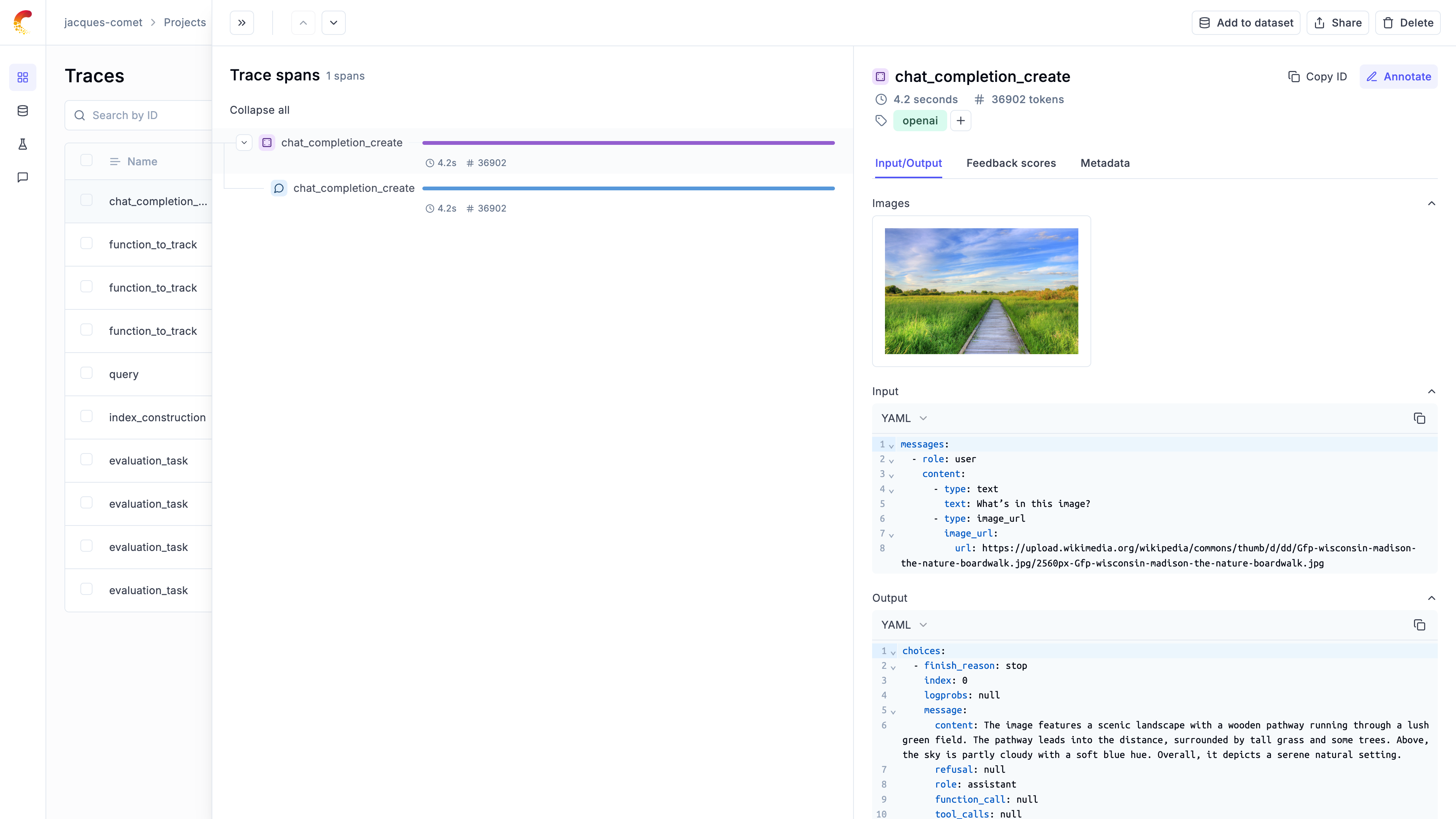
Embedded Attachments
Section titled “Embedded Attachments”When you embed base64-encoded media directly in your trace/span input, output, or metadata fields, Opik automatically optimizes storage and retrieval for performance.
How It Works
Section titled “How It Works”For base64-encoded content larger than 250KB, Opik automatically extracts and stores it separately. This happens transparently - you don't need to change your code.
When you retrieve your traces or spans later, the attachments are automatically included by default. For faster queries when you don't need the attachment data, use the strip_attachments=true parameter.
Embedded base64 size limits
Section titled “Embedded base64 size limits”Opik Cloud supports embedded attachments up to 100MB per field. This limit applies to individual base64 string values in your input, output, or metadata fields, and is separate from the inline field/request limits above - because base64 media above ~250KB is extracted and uploaded as an attachment rather than sent inline.
If you need to work with larger files:
-
Use the Attachment API - Upload files separately using
AttachmentClient(recommended for files >50MB). See Managing Attachments Programmatically -
Contact us - Get in touch if you need higher limits
-
Self-host Opik - Configure your own limits. See the Self-hosting Guide
Best Practices
Section titled “Best Practices”- Embed smaller files directly - Opik handles them efficiently
- For files >50MB, use the Attachment API for better performance
- Use
strip_attachments=truewhen querying if you don't need the attachment data
Downloading attachments
Section titled “Downloading attachments”You can download attachments in two ways:
- From the UI: Hover over the attachments and click on the download icon
- Programmatically: Use the
AttachmentClientas shown in the examples above